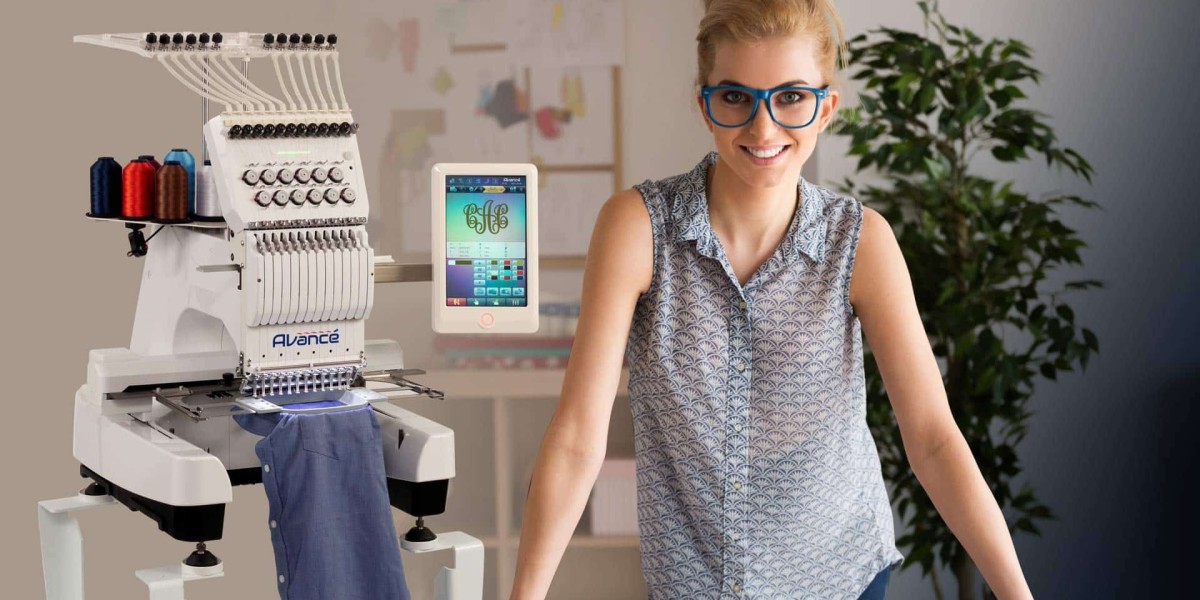

Turning a flat logo or a piece of digital art into a stitch file that a machine can actually read feels a bit like translating a language. You have this perfect image on your screen, and you need it to become a physical object made of thread. If your machine runs on EXP files, you are in the right place. Convert Digital Images into EXP Embroidery Designs is the core task here, and while it sounds technical, the process breaks down into a few clear choices. I will walk you through the realistic ways to get this done, from free software to automated tools, and explain the quirks of the EXP format so you do not get surprised when you plug in your USB stick.
Understanding the EXP Format Quirks
Before you even touch your artwork, you need to know a little secret about EXP files that confuses a lot of beginners. EXP is the native language for many Bernina and Melco machines, but it does not always store color information the same way other formats do. There are actually two flavors of EXP floating around.
The commercial Melco EXP file is the most common one you will see. It contains all the stitch data and the path the needle takes, but it strips out the thread colors. When you open it on your machine or in software, it might default to whatever random colors the software feels like showing, which can make your design look like a chaotic mess of blue and yellow even if the original art was red and black. On the other hand, a Bernina USB EXP is actually a package deal. You need the EXP file for the stitches, but you also need the INF file for the color palette and the BMP file for the thumbnail preview on the machine screen. If you are using a Bernina, make sure you are saving or converting to that specific USB EXP bundle, or at least keep your thread chart handy because you will have to tell the machine which color goes where.
Method One: The Free and Hands-On Route
If you are the DIY type and do not mind a learning curve, the most cost-effective way to create an EXP file is using Inkscape with the Ink/Stitch extension. This is a completely free, open-source setup that gives you a surprising amount of control. You cannot just drop a JPEG into it and expect magic, though. You need to start by tracing or creating vector paths for your artwork inside Inkscape. Once your shapes are clean vectors, you fire up the Ink/Stitch menu and start assigning stitch types to different objects.
You will look at your paths and decide what should be a satin stitch for outlining and what should be a fill stitch for larger areas. This is where you set your density, pull compensation, and underlay. The software lets you preview the stitch simulation so you can see if your lettering is going to look like a clumped-up blob before you ever waste stabilizer or thread. When everything looks good in the simulation, you go to export and select EXP from the format list. The catch here is that you have to do the digitizing work yourself. The software will not automatically know that a thin line in your art should become a run stitch or that the tiny text needs to be simplified. It is a manual process, but it is a fantastic way to learn exactly how embroidery files are built.
Method Two: The Automated Converter Apps
If manual vector tracing sounds like a headache, there are plenty of apps and online tools that promise to do the heavy lifting for you. These tools use automatic digitizing to analyze your image, figure out the shapes, and generate a stitch file. You can find mobile apps on the App Store that let you import a photo or logo, select EXP as your output format, and hit go. There are also web-based converters and Shopify apps designed for small business owners who need to turn logos into stitch files quickly without hiring a professional digitizer.
The reality with these automated tools is that they work best with very specific types of art. Clean, flat logos with solid colors and distinct edges tend to come out okay. Photographs, soft gradients, or artwork with lots of tiny details usually fail miserably because thread cannot reproduce that kind of subtlety. A photo converted automatically often ends up looking like a weird, blocky poster rather than a nice portrait. If you use one of these converters, pay attention to the warnings they give you. Some tools will actually tell you that details under a millimeter will disappear or that your colors had to be snapped to a limited thread palette. Always treat the first automated output as a draft, and definitely do a test stitch on scrap fabric before you commit to a nice shirt or a hat.
Preparing Your Artwork for Success
No matter which method you choose, the quality of your final EXP file depends heavily on the source image you start with. You cannot polish a muddy photograph into a crisp embroidery design. Before you upload or trace anything, simplify your art. Reduce the number of colors to something practical, usually under ten for a typical left-chest logo. Remove any unnecessary outlines, drop shadows, or gradients that will just confuse the software and create unnecessary stitch layers. If your design has text, make sure it is large enough. Standard 40-weight thread struggles with letters smaller than about six or seven millimeters high. If the text in your digital file is tiny, you are better off redrawing it in a bold, simple block font rather than trying to force the machine to stitch something unreadable.
Testing and Finalizing
Once you have your EXP file exported from Ink/Stitch or downloaded from a converter, do not immediately start mass-producing items. The final step is a test sew. Load the EXP file onto your machine, hoop up a piece of the actual fabric you plan to use with the correct stabilizer, and stitch it out. Fabric matters immensely. A design digitized for a stable woven cotton will behave completely differently on a stretchy knit or a textured towel. You might find that the pull compensation is wrong or that the density is causing the fabric to pucker. If the test looks bad, go back to your software and tweak the settings. The EXP format is just a container for instructions; you have to make sure those instructions make sense for the material you are sewing on.
Conclusion
Creating an EXP file from digital art is totally doable whether you are a hobbyist with a free afternoon or a business owner looking for a quick workflow. The key is to respect the limitations of thread and the specific quirks of the EXP format, especially regarding color storage. Start with simple, clean artwork, choose your tool wisely based on how much control you want, and never skip the test sew. Once you get the hang of it, watching your digital design come to life in thread is genuinely satisfying.