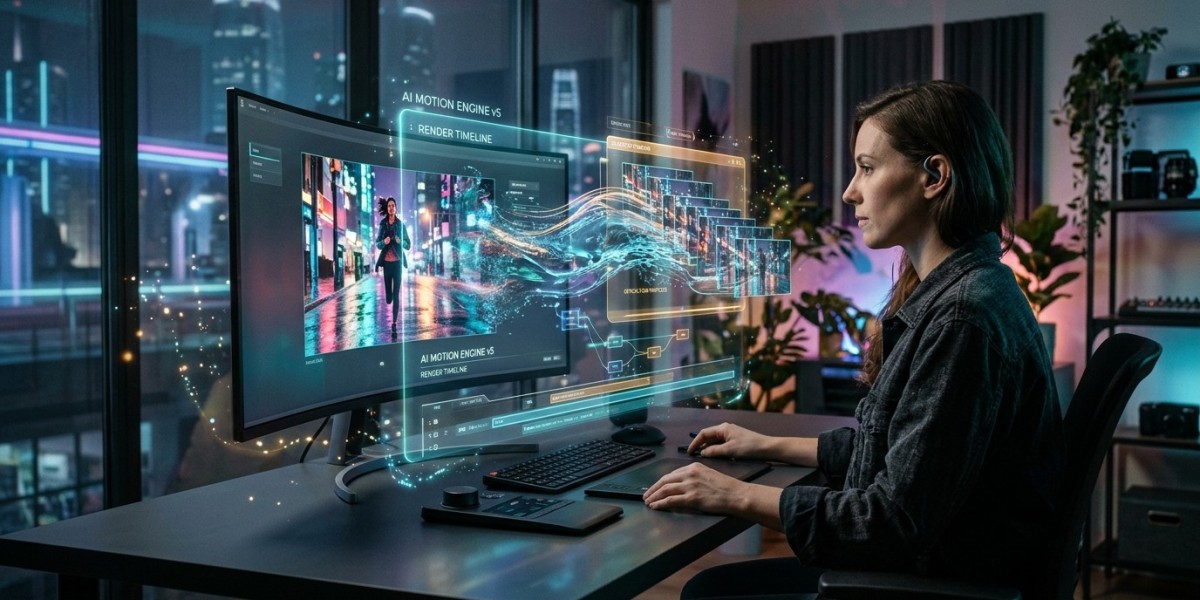
A single photograph can become a moving video with the right AI tool. You can animate family portraits, add movement to product images, bring digital artwork to life, or create short clips for social media without professional video editing skills.The key is choosing a tool that matches your image and the result you want. In this guide, we explore AI Tools to Animate Photos Into Video, explain what each platform does best, and show you how to create your first animated clip.How Does AI Photo-to-Video Animation Work?AI photo animation uses artificial intelligence to generate new video frames from a still image. Instead of simply zooming in or out, these tools can create movement such as a person turning their head, clouds drifting across the sky, water flowing, or a camera moving around a product.Most tools follow a similar process: upload an image, describe the movement in a text prompt, adjust the available settings, and generate a short video. Some platforms also support audio, lip-sync, and additional editing features.The results depend on image quality, the AI model, and the prompt. Clear images and simple movements are often easier to animate consistently than crowded scenes with overlapping objects.10 Best AI Tools to Animate Photos Into VideosEach of the following tools serves a different purpose, from realistic image animation to talking portraits and multi-photo memory films.1. Google Veo 3.1 — Best for Realistic VideoGoogle Veo 3.1 is an AI video-generation model designed to create realistic scenes from prompts and supported image inputs. Depending on the available version and platform, it can offer camera movement, detailed motion, and audio generation.It can be useful for animating landscapes, portraits, and product photographs. For example, upload a garden photo and request gentle leaf movement while the camera slowly moves forward.Available features, access, and pricing depend on the platform and plan. Check current availability before choosing it for a project.2. Runway — Best for Creative ControlRunway is a useful choice for creators who want more control over how a still image moves. Its image-to-video workflow allows you to upload a photograph, describe the movement, adjust available settings, and generate a short clip.It can suit promotional videos, property images, creative projects, and social media content.For better results, describe the action rather than repeating what is already visible in the photograph. For example, use “slow camera push-in with gentle movement in the curtains” instead of writing a long description of the entire room.3. Kling AI — Best for Portrait AnimationKling AI is worth considering when you want to animate people, characters, or portrait photographs. Depending on the model, it can generate facial expressions, body movements, and camera effects from a source image.A useful prompt might ask a person to smile naturally, blink, and turn their head slightly while the background stays consistent.Review the generated clip carefully because AI can still distort facial features, fingers, and clothing. Simple movements are often a good starting point when animating close-up portraits.4. Luma Dream Machine — Best for Landscapes and InteriorsLuma Dream Machine is an AI video-generation tool that can be useful for animating landscapes, architecture, room photographs, and product scenes.Imagine uploading a photograph of a modern living room. You could request a slow camera movement toward the sofa while sunlight shifts gently across the floor.This approach can make an interior image feel more dynamic without changing its main composition. Available models, resolutions, and export options may vary, so test a short clip to see whether the generated movement preserves important details.5. Pika — Best for Artistic AnimationPika is an option for creators who want to experiment with visual effects and stylized animation. It can suit illustrations, digital artwork, character images, and short social media clips.For example, you could upload an illustration of a character standing in the rain and request gentle hair movement, falling raindrops, and a subtle camera zoom.When animating artwork, specify that the original style and character design should remain consistent. This can help reduce unwanted changes between frames.6. Vivideo — Best for Exploring AI Video ModelsVivideo offers a workflow for exploring AI video-generation capabilities. Depending on its current features, model selection may help you compare different outputs without managing a separate process for every model.You can test a photograph with different motion prompts and compare the results before deciding which style works best for your project.Check the current terms for free generations, download options, watermarks, and usage rights. These details can change over time.7. PixVerse and Seedance — Best for Short Social Media ClipsPixVerse and Seedance are options for creators producing short videos for Instagram Reels, TikTok, and YouTube Shorts. Their capabilities depend on the specific model and the platform through which it is accessed.You could animate a product photograph with a slow rotation, add movement to a travel image, or create a short visual sequence from digital artwork.Before generating, decide whether you need realistic movement, a stylized effect, or a particular video format. If you are producing several clips, compare generation speed, credit usage, and output consistency rather than judging a tool by one successful result.8. Hedra — Best for Talking PhotosHedra is worth considering when the goal is to make a portrait speak. Tools in this category can combine a character image with audio to produce facial movement and lip-sync.This can be useful for educational videos, character presentations, narrated content, and creative storytelling.Use a clear portrait and suitable audio, then check whether the mouth movement matches the speech. Always obtain permission before creating a talking animation of another person, particularly when the result could be mistaken for a real recording.9. LivePortrait — Best for Technical UsersLivePortrait is an open-source portrait-animation project designed to animate a source portrait using expressions or movement from a driving input.It may appeal to users who prefer a technical workflow over a conventional online video editor. Depending on the implementation, you may need to install software, configure dependencies, or use a hosted interface.If you are comfortable following technical instructions, it is worth exploring for portrait animation. Check the project's current setup requirements and licence before using it commercially.10. OnReplay — Best for Multi-Photo Memory FilmsOnReplay is the option to investigate if your goal is a complete memory film rather than one animated photograph. This type of workflow focuses on combining multiple photos into a longer video with sequencing, music, and transitions.It may suit family retrospectives, celebrations, memorial projects, and personal gifts.Before choosing it, verify current service availability, supported photo limits, export options, and pricing. If you only need to animate a single image, an image-to-video generator may be more appropriate.How to Animate Photos Into Videos with AIOnce you have selected a suitable tool, follow these steps to create your first clip.Step 1: Choose a Clear ImageStart with a sharp photograph that has a clearly visible subject. Portraits, product images, landscapes, and illustrations are all possible starting points.Choose an image with enough detail for the model to understand the subject. Make sure you have permission to use the photograph, particularly if it belongs to another person or a client.Step 2: Upload the PhotoOpen your selected platform and find its image-to-video feature. Upload your photograph and check the available aspect ratio, resolution, and duration settings.Some tools may require an account or use credits for each generation.Step 3: Write a Motion PromptDescribe the movement you want to see. For example:“Animate this landscape with clouds drifting slowly, leaves moving in a light breeze, and a gentle forward camera movement. Preserve the original composition and natural lighting.”A short, focused prompt is often easier to refine than one containing many unrelated actions.Step 4: Generate and ReviewCreate the clip and check for unnatural movement, distorted faces, changing object shapes, or flickering backgrounds.If the result is not satisfactory, simplify the prompt or reduce the requested movement. You can also try a different generation model.Step 5: Export the Final ClipDownload the video if your plan allows it. You can trim the clip, add captions, include music, and combine it with other footage in a video editor.Choose the aspect ratio according to your intended platform. Vertical videos often work well for short-form social content, while landscape videos may be more suitable for websites and standard YouTube videos.Can You Use a Free AI Photo to Video Generator?A Free AI Photo to Video Generator can help you test animation before purchasing a subscription. However, free access may involve limited credits, queues, watermarks, shorter clips, or restricted downloads.Compare the current terms of Vivideo, LivePortrait, and other available platforms before deciding which option suits your needs. Open-source software and free online services may have different technical requirements and commercial-use conditions.If you plan to publish videos for a business, check whether the tool permits commercial use and whether attribution is required.Best AI Tools for Photo Animation: How to ChooseThe right platform depends on what you want to create.For realistic scenes, compare Google Veo 3.1, Runway, and Kling AI.For artistic effects, consider Pika and similar creative video tools.For product images, look for control over camera movement and object consistency.For talking portraits, consider Hedra and other tools that support lip-sync.For technical portrait animation, explore LivePortrait.For multi-photo projects, investigate OnReplay.For experimenting with different models, consider Vivideo and compare its current features.Photo to Video AI Tools 2026 continue to evolve, so features, prices, and access options can change. Test the same image and prompt in a few tools before committing to a paid plan.Tips for Getting Better Animation ResultsUse a clear, high-resolution source image and describe one main movement at a time. Avoid prompts that demand several complicated actions simultaneously.For portraits, begin with subtle movement, such as blinking or a gentle camera push-in. For landscapes, try drifting clouds or moving water. For product images, use simple camera movement and check that the object's shape remains consistent.Review the final clip for visual errors before publishing. Also check privacy and usage terms before uploading personal photographs.For readers exploring new creative software, techbysak provides technology guides and practical information about digital tools, applications, and related topics.Final ThoughtsAI photo animation gives creators a practical way to turn still images into short videos for websites, social media, presentations, and personal projects.Google Veo 3.1, Runway, Kling AI, Luma Dream Machine, Pika, Vivideo, PixVerse, Seedance, Hedra, LivePortrait, and OnReplay offer different approaches to this process.Start with a clear image, use a simple motion prompt, and review the output before publishing. Comparing a few tools on the same photograph will help you find a workflow that matches your creative goals and budget.Frequently Asked Questions1. Which AI tool is best for animating photos?The best choice depends on your needs. Compare Google Veo 3.1, Runway, Kling AI, Luma Dream Machine, and Pika for different image-to-video workflows.2. Can I animate photos into videos for free?Some tools offer free credits or open-source options. Check their current restrictions, watermarks, and download policies.3. Can AI animate an old family photograph?Yes, some tools can add subtle facial movement and camera motion to old photographs. Results depend on image quality and the model.4. Can AI-generated photo videos include sound?Some video-generation models support audio generation, while other tools require you to add music, narration, or sound effects separately.5. Are AI photo animation tools suitable for commercial use?They can be, but commercial rights depend on the provider's licence, subscription terms, and your rights to the original image.



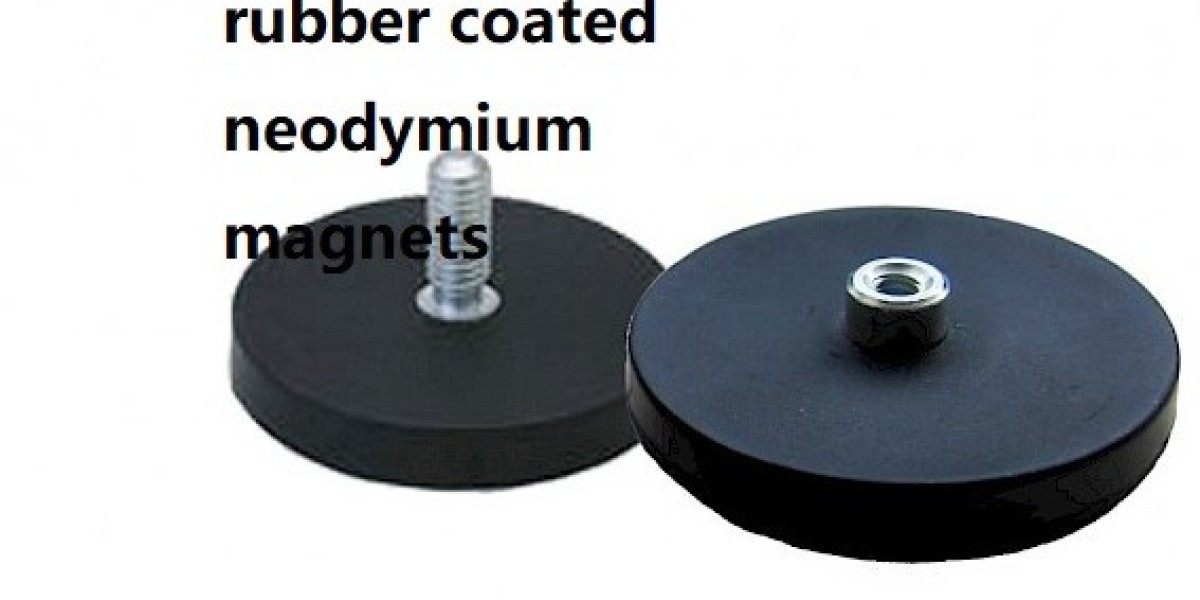 Ferrite Cylinder Magnet For Reliable Magnetic Design
توسط mlmag mlmag
Ferrite Cylinder Magnet For Reliable Magnetic Design
توسط mlmag mlmag How Blockchain Marketplaces Work
توسط lewis21h646259
How Blockchain Marketplaces Work
توسط lewis21h646259